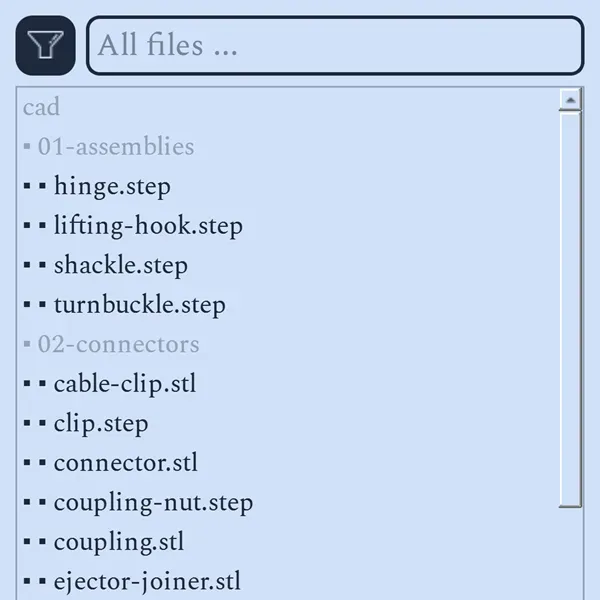
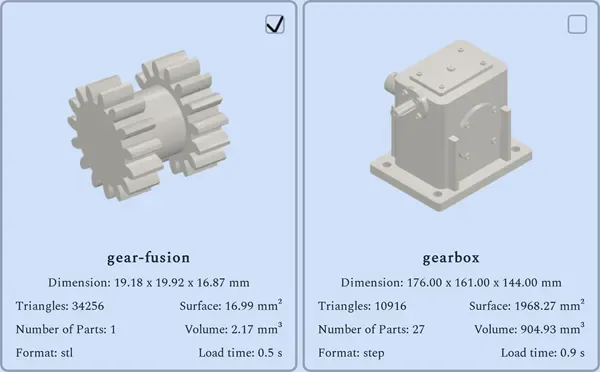
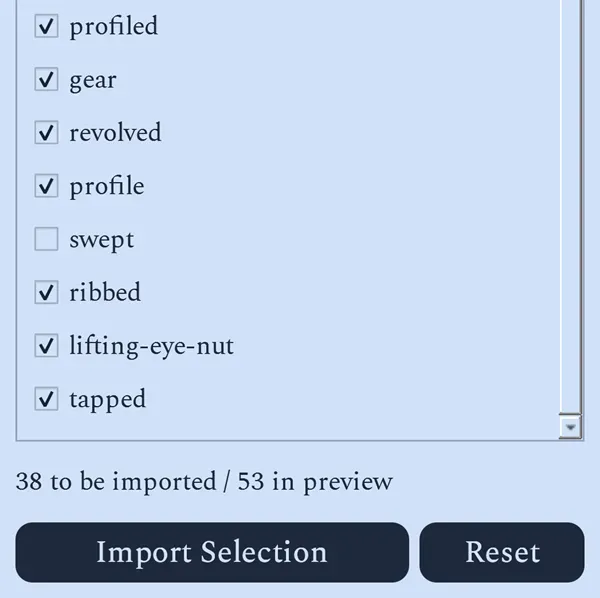
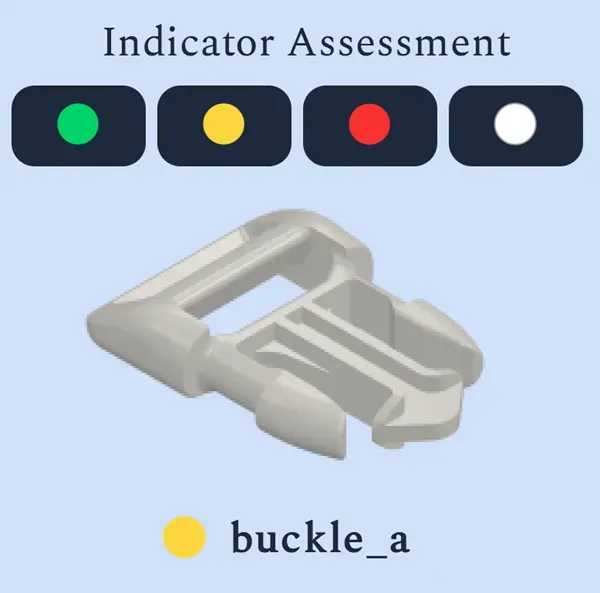
Select a main folder. PartInspector also searches all subfolders and lists supported STEP and STL files for selection.
Split Assemblies
Advanced
Import complete assemblies and split them into individual parts with PartInspector, allowing you to analyze each part separately.
Build Volume Pre-Filtering
Basic | Pro | Advanced
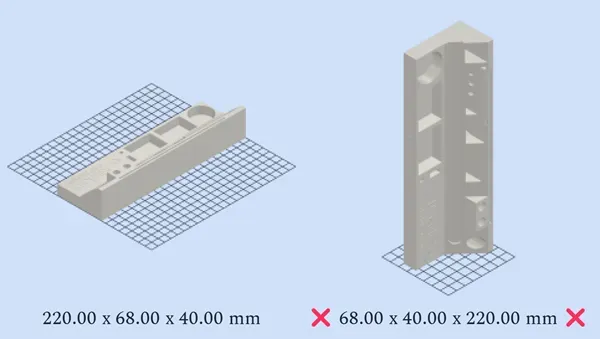
Check which parts fit within the defined build volume before importing them. This allows you to filter out unsuitable candidates at an early stage.
Batch Import
Basic | Pro | Advanced
Import multiple parts simultaneously and add them to a new or existing project.
Library
Basic | Pro | Advanced
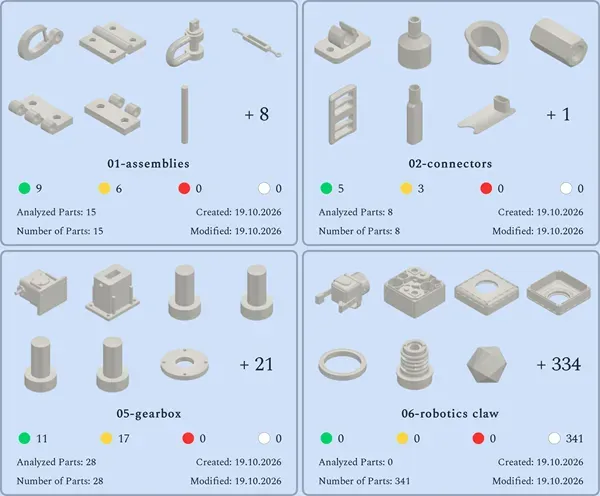
Manage your projects and their associated parts centrally in the library.
Project Overview
Basic | Pro | Advanced
Keep track of all parts within a project.
Part View
Basic | Pro | Advanced
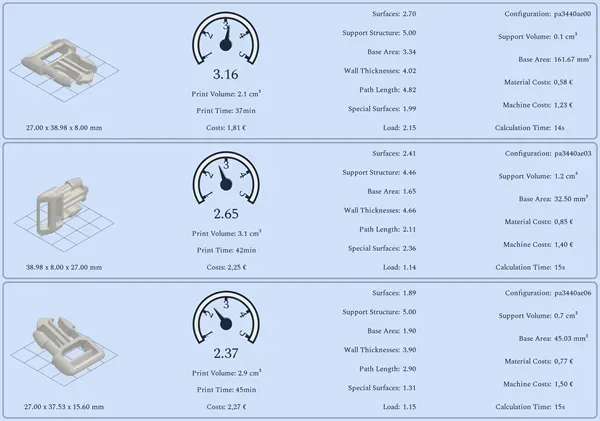
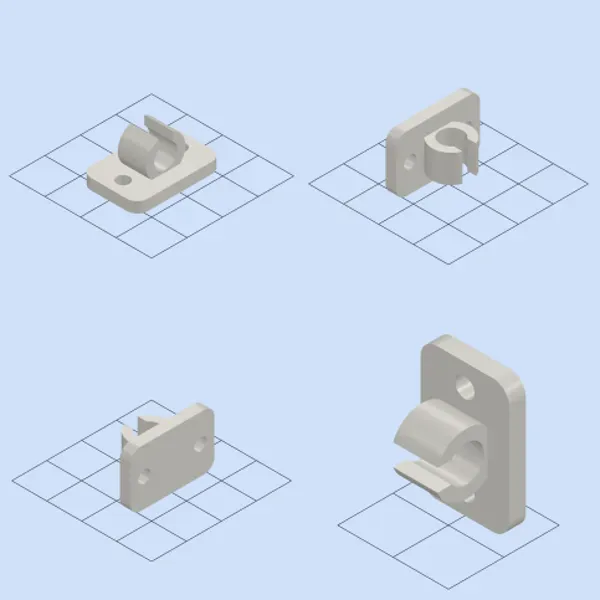
Compare the available print orientations of a part and easily switch between variants.
Filters
Basic | Pro | Advanced
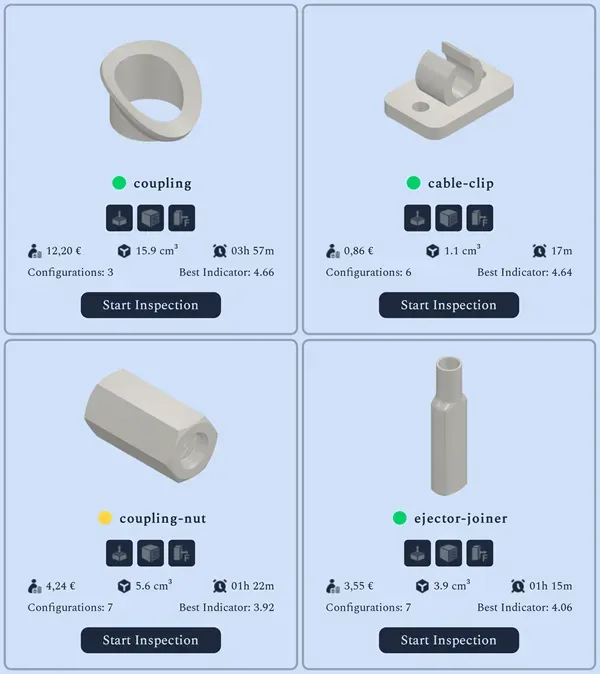
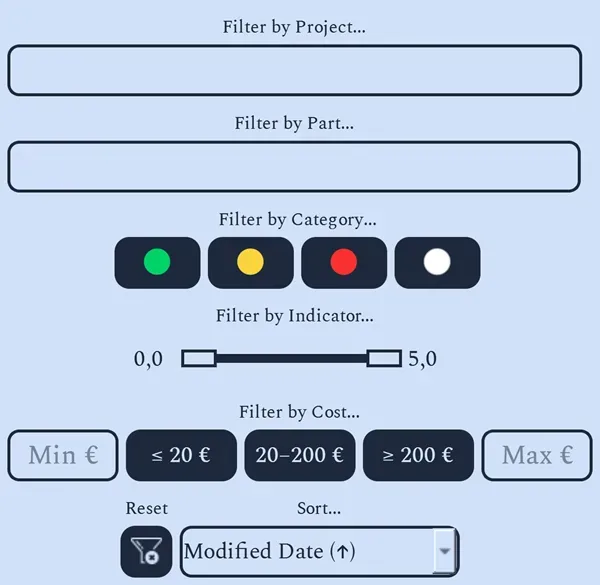
Filter parts by name, metrics, or cost to quickly find suitable candidates.
Find the right build orientation
Print orientations
Automatic Selection
Basic | Pro | Advanced
PartInspector analyzes the part geometry and automatically determines possible print orientations based on suitable base surfaces.
Manual Selection
Pro | Advanced
If the desired print orientation is not included in the automatic selection, you can define the orientation manually.
Comparable Metrics
Basic | Pro | Advanced
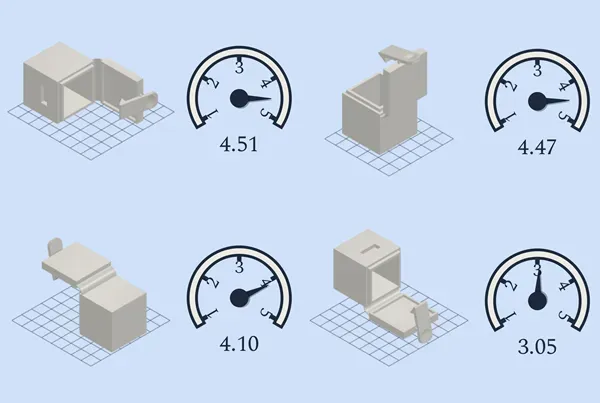
All print orientations are evaluated using the same criteria, allowing the results to be compared directly.
Evaluation Categories
Basic | Pro | Advanced
Define custom thresholds to classify metrics as good, moderate, or critical.
Evaluate parts in detail
Analysis criteria
Surface Types
Basic | Pro | Advanced
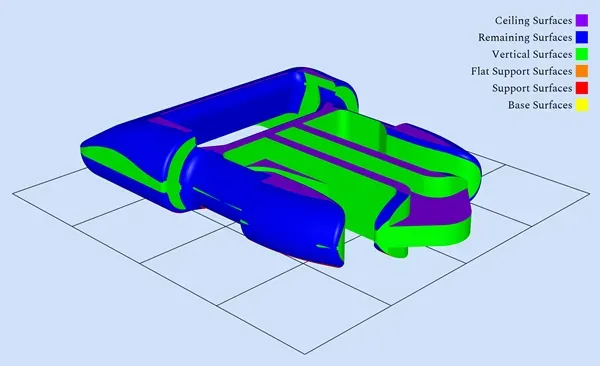
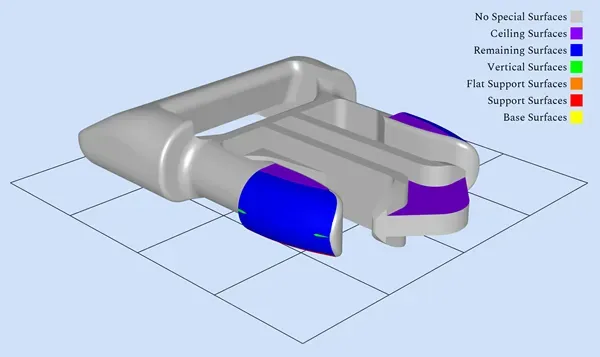
PartInspector classifies a part's surfaces according to the print orientation, for example as base surfaces, side surfaces, or support surfaces.
Support Structure
Basic | Pro | Advanced
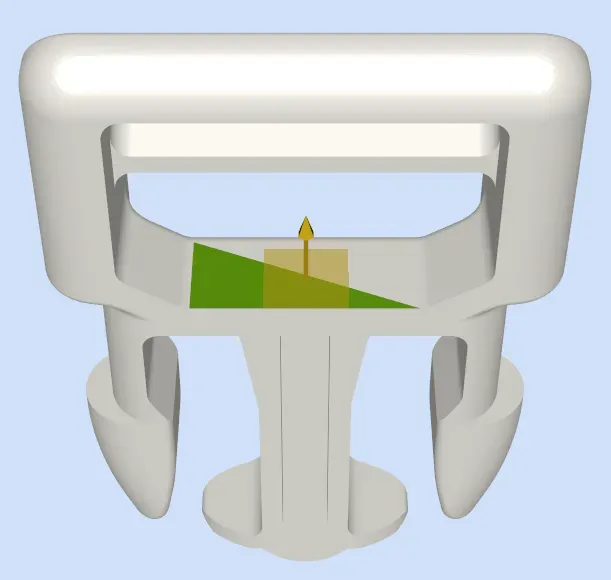
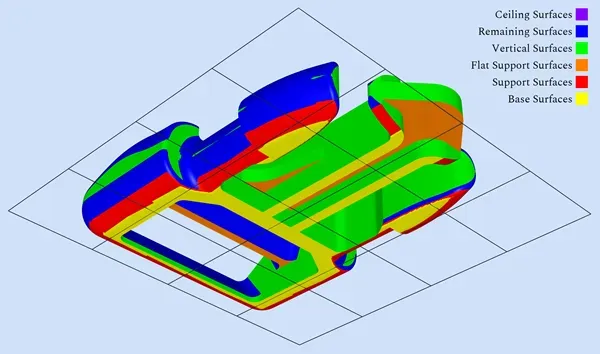
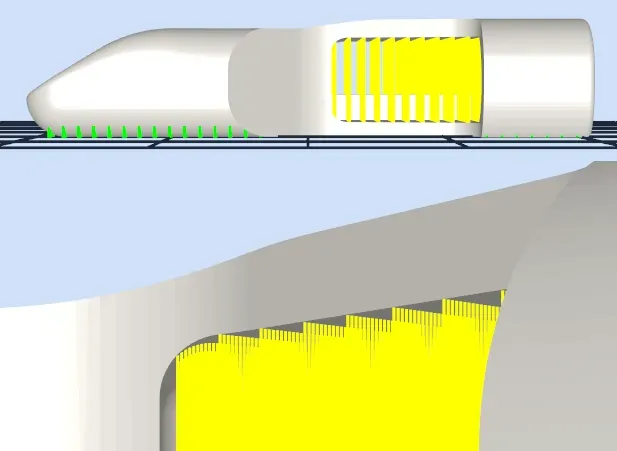
PartInspector divides support structures into three areas and distinguishes between supports on the build plate and supports on the part. Critical supports with unfavorable overhang angles at their contact points are highlighted in red.
Contact Area
Basic | Pro | Advanced
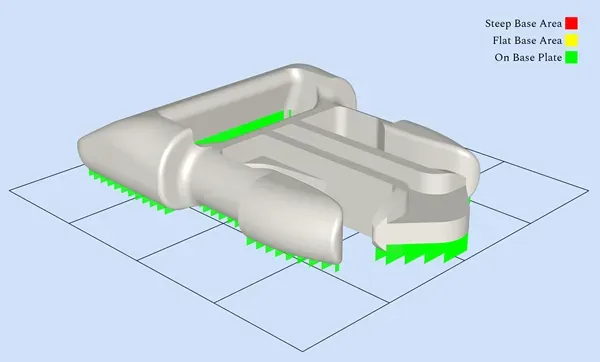
The contact area affects how securely a part adheres to the build plate during printing. PartInspector analyzes the contact area and helps identify risks caused by insufficient contact area at an early stage.
Wall Thicknesses
Pro | Advanced
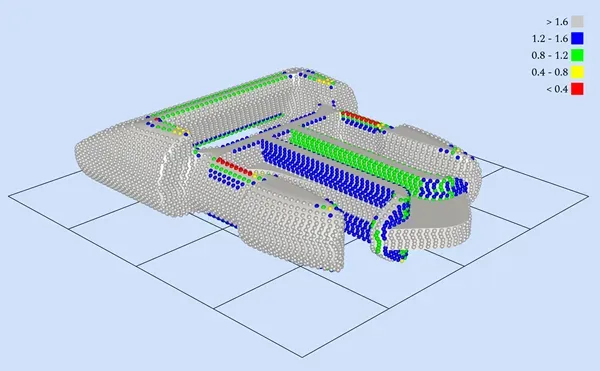
Analyze the wall thicknesses of a part in the X and Y directions. Areas with walls that are too thin can affect printability and stability. The measurement points can be adjusted in the settings.
Path Length
Pro | Advanced
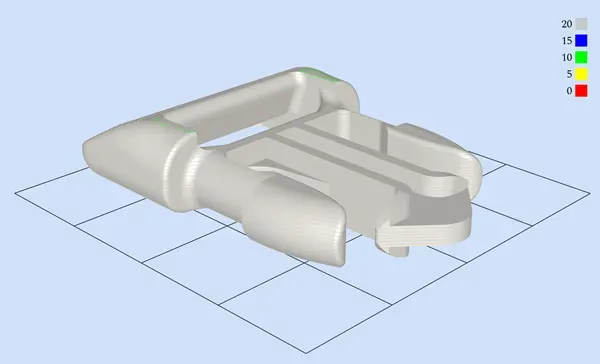
Analyze path lengths along the outer contour. A large number of short segments can impair print quality and are taken into account in the evaluation.
Special Surfaces
Pro | Advanced
Specify which surfaces should receive special attention during the analysis. This allows you to examine the areas that are most relevant to your requirements.
Load
Advanced
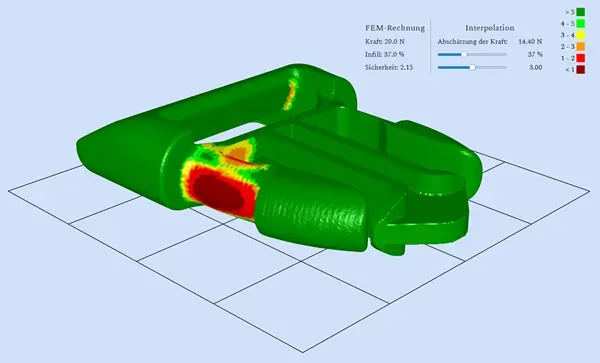
Evaluate the mechanical load-bearing capacity of a part, taking into account the print orientation and infill percentage. The calculation is based on elastic interpolation. The required material parameters can be defined in the settings.
Cost
Basic | Pro | Advanced
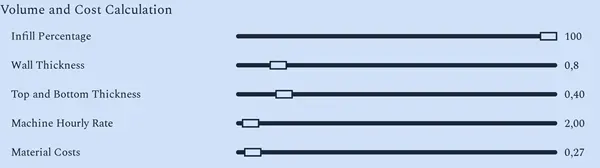
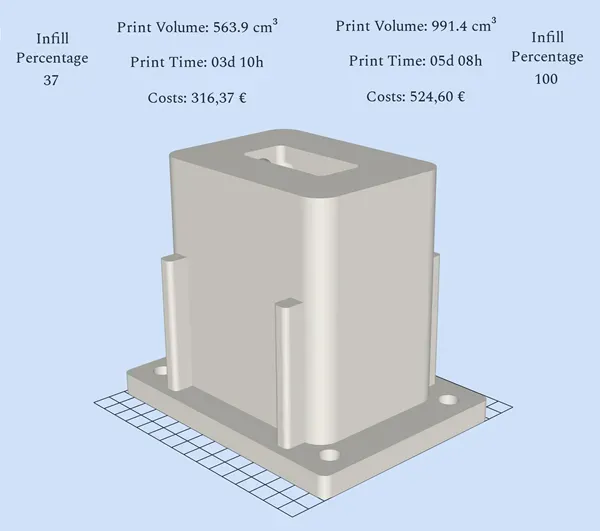
Specify the material cost of the plastic and the machine hourly rate to calculate the cost of your parts.
Print Time
Basic | Pro | Advanced
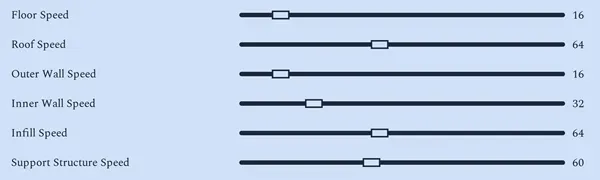
Estimate the print time based on the configured parameters. You can customize the relevant settings.
Print Volume
Basic | Pro | Advanced
Calculate the print volume while taking the infill percentage into account. The underlying parameters can be customized in the settings.
Support Structures
Basic | Pro | Advanced
Specify the overhang angle and the support spacing in the X and Y directions. PartInspector takes evenly distributed support structures into account during the analysis.
Build Volume Check
Basic | Pro | Advanced
Check whether a print orientation fits within the defined build volume.
Continue working with your results efficiently
More features
Single STL Export
Pro | Advanced
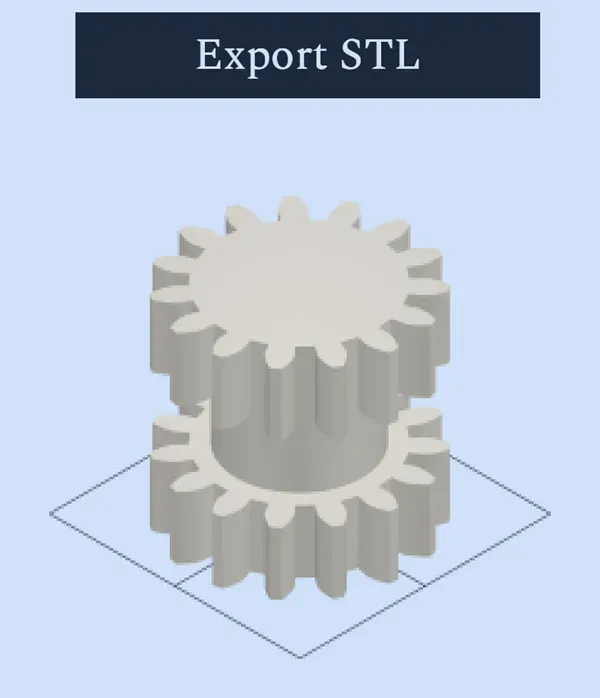
Export parts as STL files in the desired print orientation. The orientation is preserved, so the model is already positioned correctly when opened in the slicer.
Batch Export
Advanced
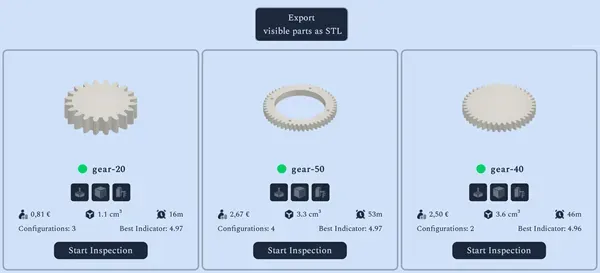
Export multiple parts in a single step, using the highest-rated print orientation for each part.
Parallel Calculations
Basic: max 3 | Pro: max 6 | Advanced: max 20
Specify how many calculations should run simultaneously. The maximum number depends on the selected plan and the available hardware.
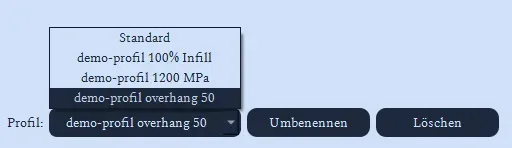
Analysis Profiles
Basic | Pro | Advanced
Create and save custom analysis profiles with different settings. This allows you to analyze parts under different conditions and compare the results.
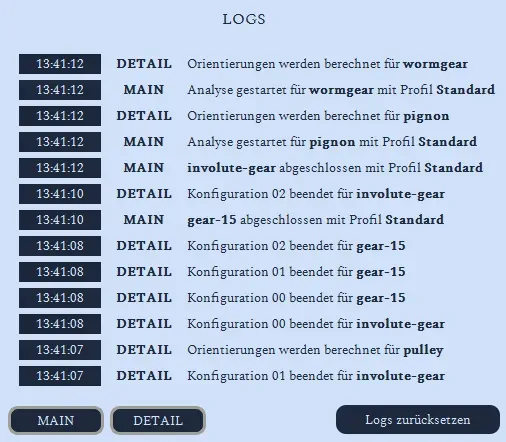
Logs
Basic | Pro | Advanced
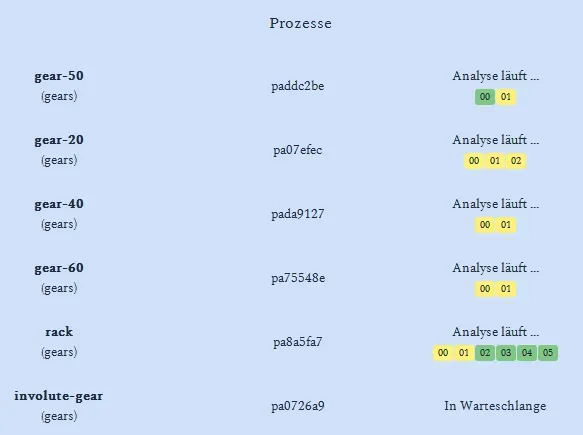
Track the progress of your analyses in the logs and see which calculations have already been completed.
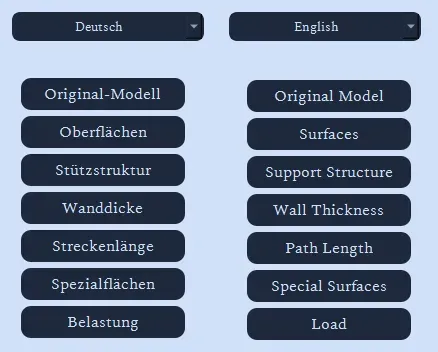
Language
Basic | Pro | Advanced
Use PartInspector in either German or English.
Powerful Even with Large Part Inventories
Performance Test
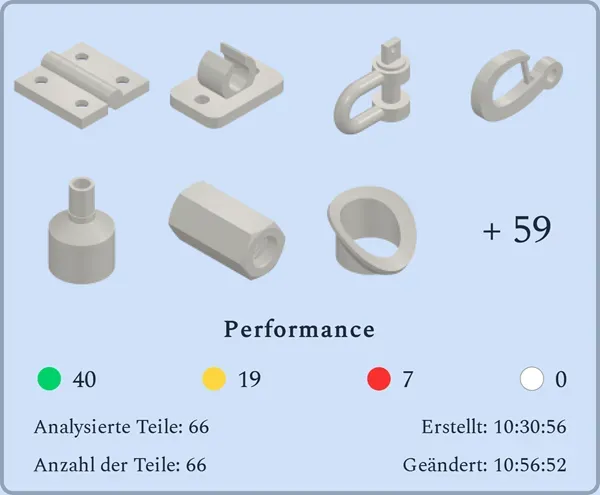
The performance test was conducted using 66 parts.
An additional 23:55 min due to less powerful hardware